
© Phanlop Boonsongsomnukool, 123RF.com
Remote desktop based on HTML5
Click to the Future
Remotely controlling applications in the browser is nothing new – it's been possible ever since Google Apps. But, what if you want to serve up your own applications from the enterprise LAN or access your home desktop over the Internet? Terminal server technologies (like VNC and RDP) or VDI solutions (like VMware View or Citrix Xen Desktop) are the obvious choices. However, this approach typically involves installing the corresponding software client on the machine from which users want to access the remote application. If you do not trust the built-in encryption, or if none exists, you will soon see the need for a VPN client to provide encryption and authentication.
This is all very unfortunate, for example, if you are working on a computer in the hotel lobby or an Internet cafe and cannot install your own applications. For some years, "clientless SSL VPNs" have plugged this gap by providing browser-based access to remote applications over a secure HTTPS connection, without needing to install a client. However, these solutions typically impose specific requirements on the browser and plugins. Often you need Java, Flash, or ActiveX – and maybe even a specific version.
Better with HTML5
The alternative is Guacamole [1], an HTML5 web application that supports graphical access via remote desktop protocols (RDPs) directly in the browser, without the need for additional plugins. The program is licensed under the AGPLv3 and, in the current version 0.6.2, supports VNC and RDP – although with limited functionality in some cases. For example, you cannot transmit audio data or connect network drives over RDP.
On the server-side, the Java software runs on an Apache server with a servlet container (Apache Tomcat) and then acts as a proxy that translates graphical output from VNC and RDP into XML and vice versa (Figure 1). The desktops accessible via RDP or VNC can run either on the application server itself or on a different computer on the network. Guacamole promises near-native performance and offers international keyboard support and an on-screen keyboard, where you can use the mouse to simulate keyboard input.
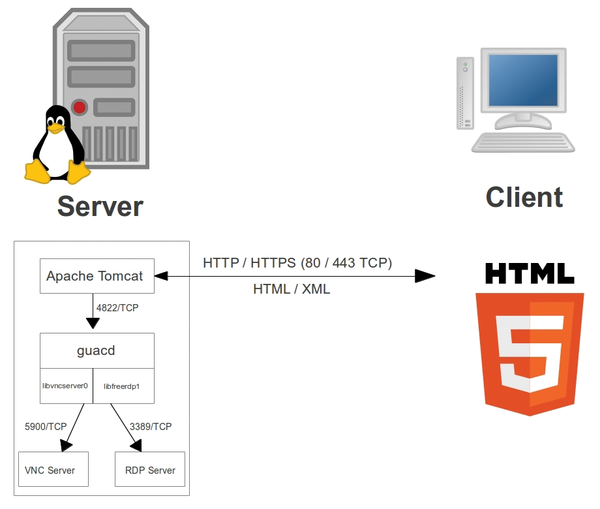 Figure 1: The sketch shows a functional diagram of Guacamole and its communication with RDP or VNC servers.
Guacamole's functionality relies on the <canvas> element in HTML5, which uses JavaScript to handle extensive graphical operations, including not only drawing lines, rectangles, arcs, and Bezier curves, but also rendering color gradients, transparencies, and text and – most importantly – scaling graphics in the PNG, JPG, and GIF formats. These are ideal conditions for rendering a desktop and applications in the browser. The prerequisite then is just a browser that supports the Canvas element. Most current browsers today can do this (apart from Internet Explorer 8 and 9), even though the W3C assumes that HTML5 will not be widely supported until 2014 (see the "HTML5-Capable Browsers" box).
HTML5-Capable Browsers
To determine whether your browser supports HTML5 features and, if so, which ones, the HTML5 Test Site [2] is highly recommended. It analyzes support for individual functions in the browser at lightning speed and assigns a score for each element. The result is a reliable assessment of your own browser's HTML5 compatibility. From the current crop of browsers, Chrome 21 easily holds the lead with 437 points, and Internet Explorer 9 is in last place with just 138 points. On mobile platforms (Android, iOS, Windows Phone, and others) Opera 12 is only two points behind Chrome (on Android 4 Devices) on all platforms.
Installing Guacamole
Fortunately, the Guacamole website has prebuilt packages for several distributions. The Downloads section of the website [1] provides packages for Debian 6.0 (squeeze), Ubuntu 11.10/12.04, and Fedora 15/16/17. Alternatively, you can build Guacamole from the source code [3].
For a test, you will need Guacamole 0.6.2 on a recent (12.04.1 LTS) Ubuntu system. To do this, you must first meet the dependencies for Java, VNC, and RDP support, which is easily done:
sudo apt-get install tomcat6 libvncserver0 libfreerdp1
Next, download the prebuilt packages for Ubuntu 12.04 from the Guacamole project page at SourceForge and unzip the contents of the archive in your home directory. Go to the new directory,
cd guacamole-0.6.2-ubuntu-12.04-i386
and install the Guacamole packages. The following one-liner will do this:
sudo dpkg -i guacd_*.deb \
   guacamole_*.deb libguac3_*.deb \
   libguac-client-vnc0_*.deb \
   libguac-client-rdp0_*.deb
If you only want to support VNC connections in the browser, you do not need to install the libguac-client-rdp0_*.deb package.
The Tomcat server now requires symbolic links: one to each of the files guacamole.war and guacamole.properties. Additionally, you need to add the tomcat6 user to the new guacamole-web group, which you can do automatically by installing the package:
sudo dpkg -i guacamole-tomcat_*.deb
Alternatively, the manual procedure is described on the Guacamole project website. Finally, reboot the Tomcat server and select yes at the prompt (Figure 2), or enter
sudo /etc/init.d/tomcat6 restart
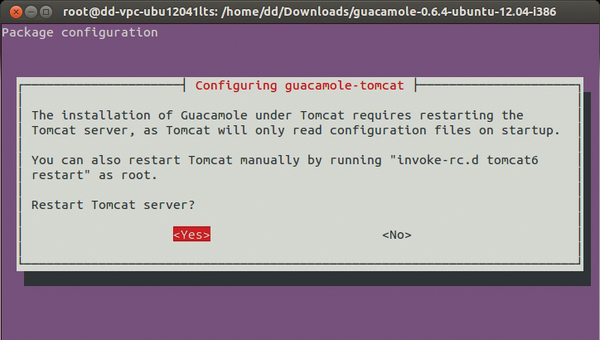 Figure 2: Installing the packages from the Guacamole website configures the Tomcat server.
to restart the Tomcat server at the command line.
Configuration
For access via Guacamole to the desktop to succeed, of course, you also need to share a desktop. During my test, I opted to share the desktop on a Windows 7 PC using the RDP protocol. This will work just as well with a real Windows terminal server or a computer on which the desktop is shared via a VNC server.
Next, you need to introduce Guacamole to the credentials of the remote desktop so that access via the browser will work. To do this, open the /etc/guacamole/user-mapping.xml file with your preferred editor (Figure 3), for example:
sudo vi /etc/guacamole/user-mapping.xml
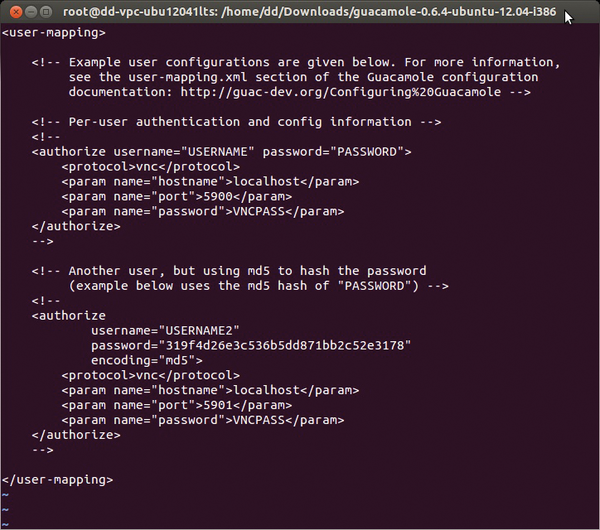 Figure 3: Users who need HTTP access to graphical desktops are added to the central user-mapping.xml configuration file.
Then, add the required data in the section:
<!-- Per-user authentication and config
 information -->
To do this, first remove the comment characters <!-- and -->.
In the example, I will set up a connection for user tom with a password of test on a Windows system with an IP address of 192.168.1.11 (Listing 1).
Listing 1
User Mapping
01 <authorize username="tom" password="test">
02       <protocol>rdp</protocol>
03       <param name="hostname">192.168.1.11</param>
04       <param name="port">3389</param>
05       <param name="password"></param>
06 </authorize>
If you prefer to use VNC, you can replace RDP in the protocol section with vnc. Next, store the password for the VNC server in the following section:
<param name="password"><MyVNCPassword>
</param>
Save the configuration file and enter
sudo /etc/init.d/guacd restart
to restart guacd.

Buy this article as PDF
(incl. VAT)