« Previous 1 2 3
Remote desktop based on HTML5
Click to the Future
Free Firewall and VPN
Sophos offers UTM 9.0 as a hardware appliance, virtual appliance, or software appliance for installation on your own hardware. Software and virtual appliances are available for download from the FTP server at the Astaro website [7]. Sophos grants registered users a free "Home Use License" for private, non-commercial use that has the full functionality of the commercial edition for up to 50 IP addresses (Endpoint Antivirus for 10 users). It includes the following modules:
- Network Security: Packet filtering, VPN, intrusion protection.
- Web Security: URL filters, Application Control, antivirus with HTTP, HTTPS, and FTP proxy.
- Mail Security: Anti-spam, antivirus with SMTP+POP3 proxy.
- Web Server Security: Web Application Firewall against cross-site scripting attacks, SQL-injection, and so on.
- Wireless Security: WLAN Controller for Sophos Access Points.
- Endpoint Antivirus: Antivirus and device control for Windows clients
To retrieve a license, first register online [8] and then log in with your credentials. The free license is then available in "View License/Home Use License."
Setting Up a User Portal
Because of the pre-built images for VMware, commissioning a Sophos UTM 9.0 with an HTML5 portal with VMware Player, VMware Workstation, or an ESX server, is easily done. If you prefer to run the virtual machine in VirtualBox, you can download the ISO image instead of the virtual appliance and bind it as a boot medium to a manually created virtual machine. After the installation, or the first launch of the VM, a simple setup wizard guides you through the configuration of the basic settings, such as assigning the admin password, setting up the Internet connection, enabling intrusion protection, setting up the proxies, and so on. At the end of this process, just install the Home Use License, and you're ready to continue setting up the HTML5 portal.
The HTML5 VPN and user portals are integrated for user access to other features. For example, you can view your own spam quarantine, download preconfigured VPN clients, and access the HTML5 VPN portal. The first step thus enables the user portal in Management | User Portal and restricts it to individual networks and users as applicable.
Of course, you want users to be able to access the user portal off the Internet. For this reason, you will want to enter AnyIPv4 in Allowed networks and also check Allow all users . Next, in Definitions & Users | Users & Groups , add the users who will be accessing the user portal. Next, enable the HTML5 VPN portal in Remote Access | HTML5 VPN portal | Enable and create the connections to the internal services. To do this, click on New HTML5 VPN Portal connection , enter a name for the connection, and select the protocol – for example, Remote Desktop (Figure 6).
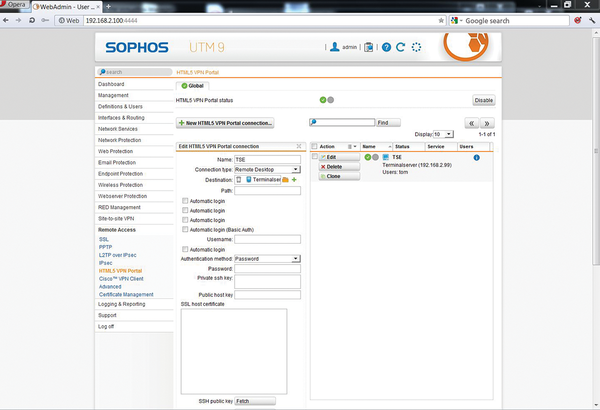 Figure 6: The new Sophos UTM 9.0 also offers an HTML5 portal for access to internal system resources in the browser.
Optionally, you can deposit the credentials; users can then log in to the terminal server directly via the HTML5 VPN portal. This approach is practical – who would want to trust an external user with an administrator account? Further down, you can assign the new connection to all users and networks or define restrictions. The connection is now ready for use. Legitimate users can log in to the user portal, which they reach via the URL https://<external IP address> . After successful authentication, users just click on HTML5 VPN Portal and then click the Connect button next to the preconfigured connections.
Finally, I should also mention that, as a back-end system, Sophos UTM 9.0 supports a wide range of authentication solutions, including LDAP, Active Directory Single Sign-On, Novell eDirectory, and RADIUS. Because most two-factor authentication solution vendors (e.g., Vasco Digipass [9]) use the universal RADIUS interface, access to the user portal can easily be protected with tokens.
Infos
- Guacamole: http://guac-dev.org/
- HTML5 test suite: http://www.html5test.com
- Guacamole source code: http://sourceforge.net/projects/guacamole/files/current/source/
- Tomcat SSL how-to: http://tomcat.apache.org/tomcat-6.0-doc/ssl-howto.html
- ThinVNC: http://www.cybelesoft.com/thinvnc/
- noVNC: http://kanaka.github.com/noVNC/
- Astaro UTM: ftp://ftp.astaro.com/UTM/v9/
- Astaro login: https://my.astaro.com
- Digipass: http://www.vasco.com/products/products.aspx
« Previous 1 2 3

Buy this article as PDF
(incl. VAT)