


HPC Desktop
Usually you find that people working in the sciences, engineering, data analysis, or any field that writes code and needs resources beyond a laptop or desktop don’t use the command line early in their career. A large portion of these people use Windows or a Mac, where a command line isn’t necessary. All the tools are based on a graphical user interface (GUI) with a minimum amount of coding. These users are not trained to learn Fortran, C++, Rust, or Go. Instead of writing code, they use Python, RStudio, MATLAB, Excel, or a visual tool. No Vi or Emacs or text editor is in their workflow. They primarily use notebooks for writing code and compiling reports of their work. Again, the work process is very visual.
If these users were shown how classic HPC works by writing, compiling, debugging, and running code; then editing, debugging, and compiling again; and repeating the process, they would think this activity alien. They do all their science, engineering, and data analysis visually. Most of the time it’s done in notebooks (e.g., Jupyter). The ability to combine data with code and comments in one document is how they function.
Robert Henschel (Indiana University) and others in universities and labs have made these observations. For example, Henschel explains that he supported a group in the imaging department of the medical school at Indiana University who used a Jupyter notebook with 150 cells that did everything they wanted. It pulled images from an MPEG file, analyzed the images, created a report, and even did an uncertainty quantification. They preferred this arrangement because it would finish one part of the workflow before moving on to the next part.
Henschel thinks that using and offering more tools like Jupyter notebooks, RStudio, and MATLAB will draw more people into the HPC world. The problem is figuring out how to run those tools on an HPC machine. His view of the state of HPC, given his history of supporting users in one shape or another for more than 15 years, are that:
- HPC systems are becoming more widely available with more users;
- demand is increasing in all fields of science;
- users are more diverse and so is their skillset;
- the tools they use are more diverse; and
- HPC centers are being asked to support it all.
At the same time, users create challenges for HPC systems. At Supercomputing 2024, at the High-Performance Python for Science at Scale Workshop, Matt Rocklin reflected on what he has learned working with users over the years:
- Users don’t read documentation.
- Users are annoyingly creative: If you give users a tool, they will break it, or they will use it in the exact opposite way intended (and they will be proud of it).
- Users use diverse tools, and tools evolve.
- Users don’t know how computers work (particularly parallel computing).
The combination of these observations limits scalability of applications and problem solving and quickly becomes inefficient.
In the same talk, Matt came up with five lessons learned:
- If you give users a tool, it should be familiar, not novel.
- Invite the users to invent and be ready for them to misuse the tool or combine it with other tools.
- Make it a visual tool (e.g., the Dask workflow visualizer) [note: It offers no new capability – it’s just a visualizer].
- Tell people about their usage (immediately if possible) to encourage them to experiment and learn.
- Make sure the tool is useful on a laptop.
The HPC world has recognized many of these observations for a while and has evolved and created tools to help users; for example,
- SPACK, EasyBuild
- Open OnDemand
- Container support
- Custom portals and gateways
Another way to help users is through HPC Desktops.
HPC Desktop
Different approaches to help new HPC users with diverse and sometimes new tools have coalesced to one that Indiana University refers to as the Research Desktop. The focus of this approach is “convenience over efficiency.” Technical computing users aren’t looking to write tight, efficient code; rather they are looking for computing resources better than their laptop or desktop so that they become more efficient.
Henschel sometimes references a January 7, 2025, quote from Andrew Jones (Microsoft) on BlueSky.
What happens when people realize that the best High-Performance Computing happens when you learn to optimize not so much the performance of the computer, but the performance of the humans using the computer?
At its core, the HPC Desktop is simply a desktop interface, which is what new technical users are used to. It should be very similar to Microsoft Windows or a Mac. Henschel has created a list of what an HPC Desktop should be. The user should:
- be able to access the HPC Desktop from any endpoint.
- be able to launch interactive graphical applications such as MATLAB, Jupyter Notebooks, Ansys, VS Code, RStudio.
- be able to compose scientific workflows with scripts (e.g., Bash scripting, Python scripts, etc.).
- have enough performance to run applications and tools to manage and submit jobs to an HPC system.
- have an HPC Desktop available for weeks or months (to reconnect whenever wanted).
HPC Desktop addresses four of the five lessons learned: be familiar, not novel; invite the user to invent; make it visual, and make it useful on a laptop. No application or tool can really satisfy the fifth lesson: telling people about their usage.
The HPC Desktop architecture is not different from cluster architectures. It looks like a login node (Figure 1) and is really in the same “layer.” External devices can reach HPC Desktop from outside the cluster, and they can reach the “HPC system” (i.e., the compute nodes). HPC Desktops can also reach HPC storage so that the data is the same regardless of whether it is a compute node, a login node, or an HPC Desktop. However, the login nodes do not allow applications to be run there within reason.
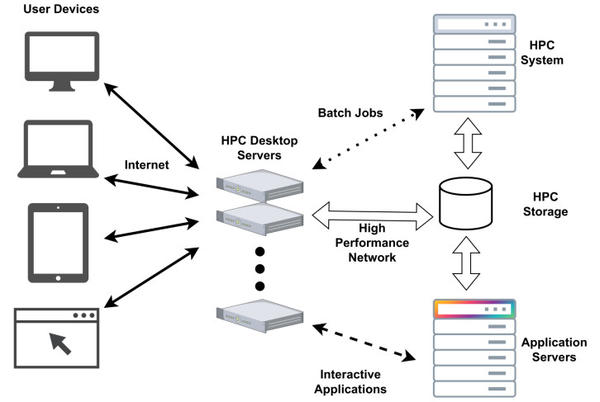 Figure 1: HPC Desktop architecture (from Robert Henschel with permission).
Note that there is a set of application servers from which the interactive applications are run so that they are not local to the HPC Desktop. These applications servers can also be accessed from the compute nodes and the login nodes.
Overall, the architecture is identical to cluster architectures. The exception is a set of HPC Desktop servers and perhaps some application servers. Of course, this architecture is not set in stone and can be adapted to other situations. For example, perhaps the HPC Desktop servers are not allowed to access the HPC system (compute nodes).
A key piece is the HPC Desktop servers that run Linux remote desktops (e.g., ThinLinc). You can think of this as the “server” portion of the remote desktop. The client is then run on Linux, Windows, macOS, or other external device. Note that the client is not browser based, although it could be.
A very important capability of these remote desktops is that you can disconnect from them on your laptop or desktop, and the remote desktop and any jobs running on the HPC Desktop server will still be running. You can then reconnect from the same or a different device when you want, and the desktop will be the same, including any running applications. Couple this with making things easy and visual, and the user is empowered to run applications for days, weeks, or months.
The remote desktop should be Linux based so users can submit jobs to compute nodes with schedulers such as Slurm or run other scripts or code from scientific fields. More importantly, the use of Linux ensures that the desktop is compatible with the storage and compute nodes, which also means you don’t have to pay for a desktop on the HPC Desktop servers.
Figure 2 shows the Indiana University remote desktop as it appears to users. Even though it’s a Linux desktop, it looks, feels, and behaves enough like a Windows or macOS desktop that users can easily adapt. The HPC desktop concepts are in use at Indiana University, Lund University in Sweden, Denmark Technical University, the National Laboratory for High Performance Computing (NLHPC) in Chile, Purdue University, and the National Energy Research Scientific Computing Center (NERSC), among others.
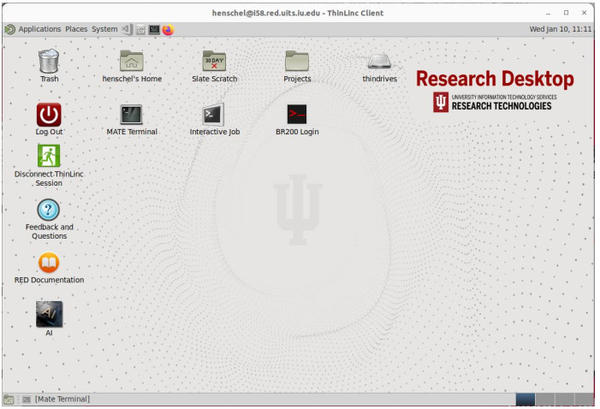 Figure 2: Indiana University HPC Desktop (from Robert Henschel with permission).
If you haven’t gathered yet, the overarching concept behind the HPC Desktop is convenience over efficiency. This is not to say that the systems, compute nodes, network, storage, and software don’t need to be efficient, but that the focus should be on making HPC systems convenient for new users.
Desktop Customizations with Vibe Coding
The key tenets of the HPC Desktop is to make it easy to use, make it visual, and tell users about their usage. Some tools, icons, and menu items to bridge the gap between a desktop and an HPC desktop are missing, which is where everyone can help.
In the past it might have taken a good coder several weeks or months to create visual (GUI) apps that create a file manager that works well with HPC storage or that submit and track Slurm jobs, but you can now make simple little applications with vibe coding – software development assisted by artificial intelligence. Simply ask Claude or Cursor to write your application in Python with a GUI interface. Once you have something like this working, you can then tie it into the desktop with the creation of an icon or a menu item. You can also have it query HPC environments to get information, such as storage usage and a list of the largest files, or query Slurm to see if the user is running any jobs and return the status of the job with details. You can also include help functionality so the user can mouse over something to get quick information or right-click to bring up some explanation.
If you are interested in customizing the HPC Desktop, look up the Robert Henschel GitHub page; he also posts on various social media with examples. Read these resources to see what is possible and have a go at vibe coding.

Related content
-
Desktop Supercomputers: Past, Present, and Future

Desktop supercomputers give individual users control over compute power to run applications locally at will.
-
Building an HPC Cluster

High-performance computing begins with understanding what you are trying to achieve, the assumptions you make to get there, and the resulting boundaries and limitations imposed on you and your HPC system.
-
Test your containers with the Docker Desktop one-node cluster
 The built-in single-node Kubernetes cluster included with Docker Desktop is a handy tool for testing your container.
 -
Moving HPC to the cloud
 HPC has a unique set of requirements that might not fit into standard clouds. However, plenty of commercial options, including cloud-like services, provide the advantages of real HPC without the capital expense of buying hardware.
 -
Moving HPC to the Cloud

HPC has a unique set of requirements that might not fit into standard clouds. However, plenty of commercial options, including cloud-like services, provide the advantages of real HPC without the capital expense of buying hardware.
Subscribe to our ADMIN Newsletters
Subscribe to our Linux Newsletters
Find Linux and Open Source Jobs
Most Popular
Support Our Work
ADMIN content is made possible with support from readers like you. Please consider contributing when you've found an article to be beneficial.