


« Previous 1 2 3 Next »
Free Security Compliance Manager hardens server systems
Defending the Baseline
Expanding Baselines
Besides using Microsoft recommendations in a baseline or modifying existing settings, you can integrate and configure settings from other baselines. For example, you could add settings from Office 2010 to an Exchange policy to manage Outlook settings on Exchange servers. To add more settings to a baseline, click Add below Setting . You can remove settings with Delete . To view the new settings in a group, use Add in Setting Group to create new groups of settings.
Editing and Documenting Baselines
Once you have created the baselines and started editing, you will find multiple columns at the center of the screen that let you specify the settings (Figure 2). On the far left is the name of the setting. The Default column contains the default settings for the corresponding server system. The Microsoft column displays the Microsoft recommendations. If you change the settings, they appear in the Customized column. The Severity column shows the importance that Microsoft attaches to the corresponding setting. The last column, Path, indicates where the setting is located in the registry or whether the setting is set via the PowerShell.
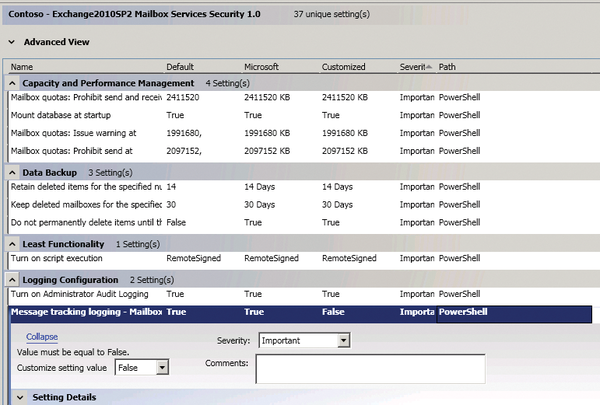 Figure 2: Configuring basic settings.
If you have created your own baselines, they appear in the Custom Baselines section on the left side along with the new Attachments\Guides menu item.
This section lets you append your own documentation, tools, and information to baselines, as necessary for implementation. Attachments can be printed, viewed, exported, saved, or viewed directly. SCM 2.5 supports the following file formats: .cab, .doc, .docx, .mp, .rtf, .txt, .url, .xls, .xlsx, .xlsm, .zip.
To protect a baseline against unwanted changes after its completion, select the menu item Lock in the action pane. This action prevents changes to this baseline, but you can re-enable editing at any time via Edit . All changes you make into baselines in SCM are logged. To open the log file, select View | Baseline Change Log . The window shows all the actions you have made in SCM, including changes to the baselines.
Exporting and Importing Settings
Once you have completed all the settings in one or more baselines, you can select the Export section on the right and choose how you want to roll out these settings to your servers or document the settings. The following options are available:
- Excel: The tool creates a XLSM file compatible with Excel 2007/2010. You can also use the file for other purposes; you do not necessarily have to install SCM on the target computer.
- GPO Backup: The backup creates a directory with a GPO backup of the baseline. You can import this back into your production environment just like a normal Group Policy. To do this, create a new Group Policy in Active Directory and restore the settings from the GPO backup in the new backup.
- SCAP: This option creates a file on the basis of the Security Content Automation Protocol (SCAP). This option can also be used on other systems.
- SCCM DCM: The tool creates packages that are compatible with Microsoft System Center Configuration Manager. They can be used to monitor and configure the connected target computers.
- SCM: This option creates a CAB file, which you can import into another SCM installation where you can edit it further.
After creating a SCM-compatible export, although you cannot use these settings for importing Group Policies, you can import the settings back into the SCM interface and edit them again. Start the import either in the Import menu on the right-hand side, or press the keyboard shortcut Ctrl+I. In the Import Baselines Wizard , select the package you want to import. When you click Next , the wizard reads the data and shows the integrated baselines. Clicking on Import tells the wizard to integrate the baselines in the CAB file in SCM on the local computer. In this section, you can also import Group Policy backups. To do so, select the Import | GPO Backup (folder) option.
« Previous 1 2 3 Next »

Buy this article as PDF
(incl. VAT)
Buy ADMIN Magazine
Related content
-
Optimizing domain controller security
 Configure your domain controller security settings correctly with Policy Analyzer and current Microsoft baselines for a leak-tight Active Directory.
-
Monitoring changes in Active Directory with built-in tools
 Monitoring with built-in Windows tools can prevent the worst from happening after an attempted attack.
-
Group policies on Windows Server 2022
 We discuss how to manage and secure clients with group policy object templates and look at some recommendations from various governmental and non-governmental security advocates.
-
Protect Hyper-V with on-board resources
 With the right settings and small tools, security in virtual environments can be increased significantly by tweaking the on-board tools.
-
Microsoft Network Policy Server
 Redmond's RADIUS implementation connects systems and provides secure authorization and logging.
Subscribe to our ADMIN Newsletters
Subscribe to our Linux Newsletters
Find Linux and Open Source Jobs
Most Popular
Focus On Self-Hosting
• Running Your Own Matrix Server with Synapse
• Reliable Network Storage with TrueNAS Community Edition
• Self-Hosted File Syncing with Seafile
• Wiring the Modern Stack with Node-RED
• Self-Hosted Collaboration with Forgejo
• Self-Hosted PaaS with Coolify
• Build and Host Docker Images
• Self-Hosted Pritunl VPN Server with MFA
Support Our Work
ADMIN content is made possible with support from readers like you. Please consider contributing when you've found an article to be beneficial.