


© Dmitriy Shironosov, 123RF.com
Free Security Compliance Manager hardens server systems
Defending the Baseline
When companies deploy multiple Windows servers, they often have a problem defining and distributing security settings uniformly and for best possible effect. The free Microsoft Security Compliance Manager (SCM) contains templates and recommendations for protecting servers via Group Policies and PowerShell scripts. The focus is on protecting the Windows operating system. In the new version, the tool can also protect Exchange Server 2007 SP3/2010 SP2.
Basically, the tool creates templates for Group Policies that integrate Microsoft recommendations. Administrators can customize the policies to meet their enterprise needs and then add new policies via Group Policy for distribution to servers.
The SCM tool supports not only Active Directory servers but standalone servers as well. SCM also offers a command-line tool that administrators can use to harden servers through batch files.
Free Tool
Microsoft provides SCM for free [1]. After you install the tool, import the existing group policies from Active Directory and compare the settings in your policies with the configuration recommendations from SCM. You can then import the custom policies back into Active Directory. If you are not currently using group policies, you can create new policies easily with SCM or secure individual servers with SCM via local security policies.
SCM helps protect Windows Server 2003/2008/2008 R2, as well as the client operating systems Windows XP/Vista and Windows 7, including Service Pack 1. Version 2.5 of SCM still lacks the support for Windows 8 and Windows Server 2012, but by the time these operating systems are released in the last quarter of 2012, Microsoft will probably have an updated version of SCM on offer. Additionally, SCM protects Internet Explorer 8/9, Office 2007/2010, and Exchange Server 2007/2010, including the latest service packs – above all for Exchange Server 2010 SP2.
Admins can easily run SCM on their own workstations (Figure 1); however, they must have a 64-bit version of Windows 7 installed. If they later want to export the SCM settings to an Excel sheet, they must have Excel 2007/2010 on the corresponding computer. This is optional and only necessary if they want to import various settings from SCM into Excel.
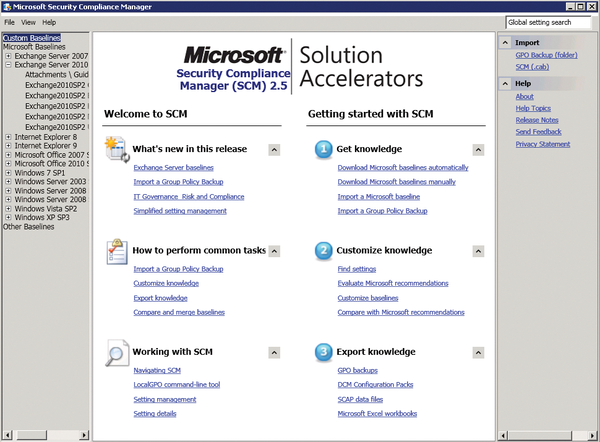 Figure 1: Starting the Microsoft Security Compliance Manager.
SCM Hands On
SCM requires .NET Framework 4.0 [2]. The free SQL Server 2008 R2 Express Edition database [3] is also required on the server. You should install these dependencies before SCM. Use the default settings for both when you install. SCM stores its configuration data, baselines, settings, and documentation in SQL Server 2008 R2.
The next step is to install SCM on a workstation or a server. After the installation, the SCM management tool is available. When first started, the tool reads the corresponding configuration recommendations, known as baselines, for the server systems and starts the SCM management interface. On the left, you can select the recommendations (baselines); in the center, you create and change settings. On the right, you'll find actions for saving the templates and importing them into group policies.
Updating SCM baselines via the Internet at regular intervals is a good idea. To do so, use the Download Microsoft baselines manually link on the SCM welcome screen. The tool opens Internet Explorer and suggests new baselines for installation. A Microsoft site [4] lets you download and integrate baselines manually in SCM.
Editing Baselines
On the left side of the Manager are various baseline recommendations. To modify servers or programs to create your own policies, click on the baseline you want to use and, on the right, select the Duplicate action under the Baseline section. The duplicated template already contains the settings and recommendations from Microsoft. The next step is to adapt the settings in your new baseline to match your needs.
When the settings are complete, you need to export them. Various options are available to do so. The best approach for the export action is to create a Group Policy Object (GPO) backup folder. In this way, you can import the backup as a new Group Policy on the network in Group Policy Manager – although importing the policy does not apply the settings. For that, you need to assign the new policy to an organizational unit or domain. The imported settings are effectively a normal Group Policy.
After exporting the baseline as a GPO backup, copy it to a domain controller or use the Group Policy Manager on the local workstation. To do this, you must install the appropriate Remote Server Administration Tools.
The settings can also be imported as templates in System Center Configuration Manager. Companies that use System Center can thus integrate SCM directly, but integration via a Group Policy backup works just as well. You can compare and merge settings from different baselines using the Compare/Merge menu item.
After selecting the policies, you can compare them or merge them to create a new policy. In this way, you can also compare baselines that you edited yourself with the default baselines and see the changes you have made at a glance. The results of the comparisons can be exported to Excel, thus making it easier to see differences. This process is useful, for example, if you import a *.CAB file provided by another SCM installation.

Buy this article as PDF
(incl. VAT)
Buy ADMIN Magazine
Related content
-
Optimizing domain controller security
 Configure your domain controller security settings correctly with Policy Analyzer and current Microsoft baselines for a leak-tight Active Directory.
-
Monitoring changes in Active Directory with built-in tools
 Monitoring with built-in Windows tools can prevent the worst from happening after an attempted attack.
-
Group policies on Windows Server 2022
 We discuss how to manage and secure clients with group policy object templates and look at some recommendations from various governmental and non-governmental security advocates.
-
Protect Hyper-V with on-board resources
 With the right settings and small tools, security in virtual environments can be increased significantly by tweaking the on-board tools.
-
Microsoft Network Policy Server
 Redmond's RADIUS implementation connects systems and provides secure authorization and logging.
Subscribe to our ADMIN Newsletters
Subscribe to our Linux Newsletters
Find Linux and Open Source Jobs
Most Popular
Focus On Self-Hosting
• Running Your Own Matrix Server with Synapse
• Reliable Network Storage with TrueNAS Community Edition
• Self-Hosted File Syncing with Seafile
• Wiring the Modern Stack with Node-RED
• Self-Hosted Collaboration with Forgejo
• Self-Hosted PaaS with Coolify
• Build and Host Docker Images
• Self-Hosted Pritunl VPN Server with MFA
Support Our Work
ADMIN content is made possible with support from readers like you. Please consider contributing when you've found an article to be beneficial.