


« Previous 1 2
Hyper-V 3.0 in Windows Server 2012
Turf War
Virtual Switches
Before you install a virtual server on a Hyper-V host, the first step is to configure the virtual switches – in Hyper-V these are also called vSwitches. To help with this step, the Hyper-V Manager includes a Virtual Switch Manager. You first create a virtual switch for each individual physical network adapter in the server. Under MAC Address Range , the dynamic MAC range can be defined for the virtual network cards on the server.
Static MAC addresses can also be specified for virtual servers. This is especially important for operation in a cluster. If virtual servers are moved between the cluster nodes, the MAC addresses change on restart because each node has its own pool. This process can cause problems with Windows activation, as well as with Network Load Balancing clusters.
Virtual switches act as Layer 2 network switches and also allow integration of NDIS (Network Device Interface Specification) filters and of WFP (Windows Filtering Platform) drivers. In this way, third-party plugins that offer advanced network and security settings for virtual servers can be integrated into Hyper-V (Figure 3). The corresponding settings for each individual vSwitch can be reached via the Plugins menu item.
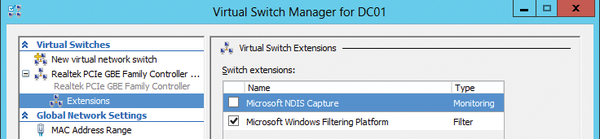 Figure 3: The plugins for virtual switches in Windows Server 2012 provide log and filter functions with the Windows Filtering Platform.
Once the physical network adapters of the server have each been assigned a virtual switch, they can be allocated to the individual virtual servers. You can do this while creating the virtual machine or afterward in the settings under Network Adapter . The first setting is the allocation of a virtual switch. The bandwidth control is found directly on the start page. In this way, the network usage of the virtual servers can be controlled more closely than in Windows Server 2008 R2.
New Guards
Two new settings are found under Advanced Features : DHCP guard and Router guard prevent uncontrolled use of virtual servers as DHCP servers or routers (Figure 4). This is to prevent virtual servers from undesirably acting as a DHCP server or router and disrupting the network.
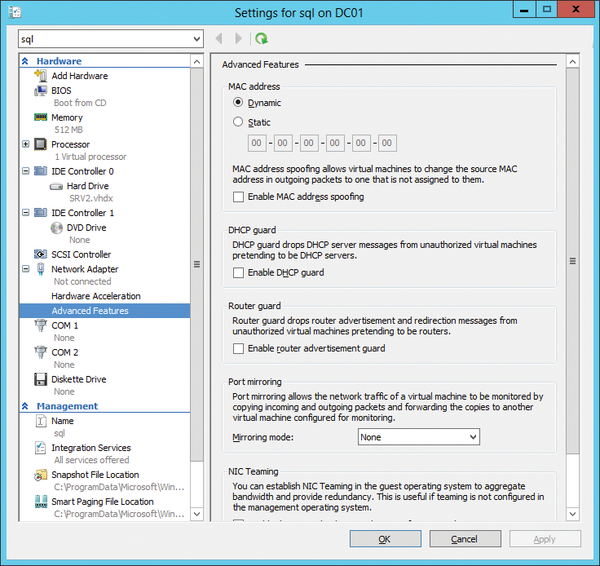 Figure 4: Under the advanced network settings, you'll find the DHCP and Router guards, which prevent troublemakers from disrupting the network.
Windows Server 2008 R2 can transfer only one server at a time, which usually isn't very efficient, especially in cluster environments hosting multiple virtual servers. Windows Server 2012 with Hyper-V 3.0 can now perform multiple live migrations at once. These settings are found in the Hyper-V settings of the host under Live Migrations .
Conclusions
Hyper-V 3.0 is an outstanding feature of Windows Server 2012. With this version, Microsoft has corrected many weaknesses and efficiently developed the virtualization platform. The new Hyper-V replication offers significantly better possibilities for utilizing virtual network adapters, and the new capabilities for live migration provide a genuine improved value. For the foreseeable future, VMware will probably remain the top dog in the virtualization jungle, but Microsoft is slowly catching up.
Infos
- Windows Server 2012 Release Candidate: http://technet.microsoft.com/us-en/evalcenter/hh670538.aspx
« Previous 1 2

Buy this article as PDF
(incl. VAT)
Buy ADMIN Magazine
Related content
-
Hyper-V 3.0 in Windows Server 2012
In the old Hyper-V hypervisor from Microsoft, many features for professional use were missing. The new version 3.0 has been significantly improved and is slowly catching up to VMware.
-
Protect Hyper-V with on-board resources
 With the right settings and small tools, security in virtual environments can be increased significantly by tweaking the on-board tools.
-
Live migration of virtual machines on Hyper-V
 The new version of Hyper-V sees Microsoft improve and simplify live migration and high-availability options.
-
Virtual networks with Hyper-V in Windows Server 2016
 Microsoft provides some interesting virtualization features in current and future versions of Windows Server. You can connect or isolate virtual machines, and Windows Server 2016 even supports virtual switches.
-
Hyper-V with the SMB 3 protocol
 Microsoft has introduced several improvements to Windows Server 2012 and Windows Server 2012 R2 with its Server Message Block 3. Hyper-V mainly benefits from faster and more stable access to network storage. In this article, we look at the innovations.
Subscribe to our ADMIN Newsletters
Subscribe to our Linux Newsletters
Find Linux and Open Source Jobs
Most Popular
Focus On Self-Hosting
• Running Your Own Matrix Server with Synapse
• Reliable Network Storage with TrueNAS Community Edition
• Self-Hosted File Syncing with Seafile
• Wiring the Modern Stack with Node-RED
• Self-Hosted Collaboration with Forgejo
• Self-Hosted PaaS with Coolify
• Build and Host Docker Images
• Self-Hosted Pritunl VPN Server with MFA
Support Our Work
ADMIN content is made possible with support from readers like you. Please consider contributing when you've found an article to be beneficial.