« Previous 1 2 3
Server virtualization with VirtualBox
To Each Its Own
VBoxTool for Automation
VBoxTool comprises a series of wrapper scripts for the VirtualBox CLI tool VBoxManage; for example, you can automatically start and stop individual or all virtual machines when the host is started or shut down (Figure 4). With VBoxTool, you can also retrieve information about the status of all or just the current virtual machines or handle bulk operations at the command line with a single command.
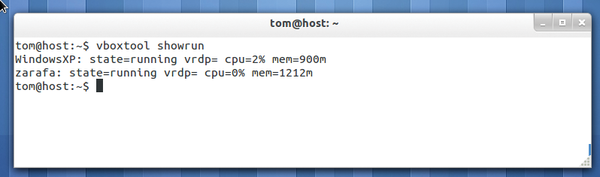 Figure 4: VBoxTool simplifies the management of virtual machines on a VirtualBox host. With a single command, you can view the status of VMs and start, stop, or backup via rsync.
All it takes to start, stop, or switch all virtual machines to save mode at the same time, or to back up the VMs automatically with the help of rsync, are the following commands:
vboxtool start
vboxtool stop
vboxtool save
vboxtool backup
When running the backup command, VBoxTool also takes care of automatically switching the machine to secure mode and restarting after creating the image.
Installation
Installing VBoxTool is very easy: First, download the ZIP archive from the VBoxTool project page [7], then unzip the contents of the ZIP archive in your home directory on the server system:
unzip vboxtool-0.4.zip
Then, copy the main script to /usr/local/bin:
sudo cp ~/script/vboxtool /usr/local/bin
Now you need to make the script executable,
sudo chmod +x /usr/local/bin/vboxtool
and make the init script executable,
sudo cp script/vboxtoolinit /etc/init.d
sudo chmod +x /etc/init.d/vboxtoolinit
which then needs to be enabled for the appropriate runlevels:
sudo update-rc.d vboxtoolinit defaults 99 10
The VBoxTool configuration is based on just two files, For the first file, you need to create a directory in /etc:
sudo mkdir /etc/vboxtool
With your editor of choice, now create a file named vboxtool.conf that only contains the username of the account on which VBoxTool runs. In this example, the user is vbox
:
vbox_user='vbox'
Optionally, you can specify a backup directory to which the virtual machines are automatically backed up. If you specify a backup directory, you can back up virtual machines over the network – for example, to a NAS or a share on a server. However, you must make sure the user also has the appropriate write permissions in the specified directory.
backup_folder=/home/user/vboxbackup
If you do not explicitly specify the backup folder, the backups are created in the respective folders of the VMs.
For VBoxTool to know which VMs it is responsible for from now on, you need to create another file:
/etc/vboxtool/machines.conf
In the file, enter a separate line for each of the virtual machines on your host, using the following format:
<VM-Name>,<VRDP-Port>
Notice that you are not allowed to put spaces before or after the comma . On my test server, /etc/vboxtool/machines.conf looks like this:
zarafa,3389
WindowsXP,3390
The machines listed here are now automatically started by VBoxTool when the host system boots and are stopped again at shutdown.
The configuration stage is done. From now on, the commands listed in Table 1 are available for you to control your virtual machines.
Table 1
VBoxTool
| Command | Function |
vboxtool show
|
Displays the status of all the VMs. |
vboxtool showrun
|
Displays only the status of the currently active virtual machines. |
vboxtool showconfig
|
Displays the contents of the configuration files. |
vboxtool start [session]
|
Without parameters, all the VMs created in /etc/vboxtool/machines.conf are started; otherwise, the specified session is started.
|
vboxtool save [session]
|
As above, all VMs are switched to "backup" mode, or only a specific VM. |
vboxtool stop [session]
|
As above, all VMs are stopped, or only a specific VM. |
vboxtool backup [session]
|
All VMs [or only a specific VM] are first switched to "backup" mode and then saved via rsync to the backup directory defined in the /etc/vboxtool/vboxtool.conf file.
|
Conclusions
VirtualBox is a genuine alternative to the established, and usually much more complex, virtualization environments of VMware and other server-side virtualization specialists. Although VirtualBox is primarily intended for use on the desktop, the hypervisor can be managed in headless mode – that is, without a graphical user interface.
If you are ready for some creative configuration, you can compensate for the lack of network connectivity in the VirtualBox GUI by designing your solution around a pair of helpful open source tools: VBoxManage and phpVirtualBox.
Infos
- VirtualBox: http://www.virtualbox.org
- Linux downloads: https://www.virtualbox.org/wiki/Linux_Downloads
- VirtualBox Extension Packs: http://download.virtualbox.org/virtualbox/
- VBoxManage command reference: http://www.virtualbox.org/manual/ch08.html
- phpVirtualBox: http://code.google.com/p/phpvirtualbox/
- Ubuntu Apache documentation: https://help.ubuntu.com/10.04/serverguide/C/httpd.html
- VBoxTool: http://sourceforge.net/projects/vboxtool/files/vboxtool/0.4/
« Previous 1 2 3

Buy this article as PDF
(incl. VAT)
Buy ADMIN Magazine
Related content
-
Server Virtualization with VirtualBox
VirtualBox is a popular virtualization choice on the desktop. In this article, we show how you can also run VirtualBox on a Linux server – with all the comforts of a graphical user interface.
-
phpVirtualBox and RemoteBox compared
 Oracle's VirtualBox runs as an application on a host operating system, but the phpVirtualBox web interface and the native Perl/Gtk interface, RemoteBox, both make VirtualBox remotely manageable with a little effort.
 - VirtualBox 6.1.34 Is Now Available with Support for Linux Kernel 5.17
Subscribe to our ADMIN Newsletters
Subscribe to our Linux Newsletters
Find Linux and Open Source Jobs
Most Popular
Focus On Self-Hosting
• Reliable Network Storage with TrueNAS Community Edition
• Self-Hosted File Syncing with Seafile
• Wiring the Modern Stack with Node-RED
• Self-Hosted Collaboration with Forgejo
• Self-Hosted PaaS with Coolify
• Build and Host Docker Images
• Self-Hosted Pritunl VPN Server with MFA
Support Our Work
ADMIN content is made possible with support from readers like you. Please consider contributing when you've found an article to be beneficial.