


« Previous 1 2 3 4 Next »
Advanced security in Windows Firewall
Safe as Houses
Evaluation Order for Rules
Windows knows a number of rule types in addition to those discussed thus far. The order of internal processing is as follows:
1. Windows service hardening
2. Connection security rules
3. Authenticated work-around rules
4. Block rules
5. Allow rules
6. Default rules
The Windows Firewall follows an approach that is different from other firewalls that process rules as individually ordered. When creating rules, you must take this into account.
Connection Security Rules
The connection security rules complement the normal ruleset that allows or blocks connections. If you indicate that only secure connections are to be allowed for a rule, the communication must match one of the rules created in the Connection Security Rules section. Unlike inbound and outbound rules, these rules have no defaults.
Connection security rules are created in the same way as inbound and outbound rules. After selecting New Rule in the context menu, you can choose between different rule types:
- Isolation: Restrict connections based on authentication criteria, such as domain membership or health status.
- Authentication exemption: Do not authenticate connections from specific computers.
- Server-to-server: Authenticate connection between the specified computers.
- Tunnel: Authenticate connections between gateway computers.
If you select Isolation , the computer is protected against non-authenticated computers. On the next dialog page, you can select the authentication requirements for a particular rule's connections (Figure 6).
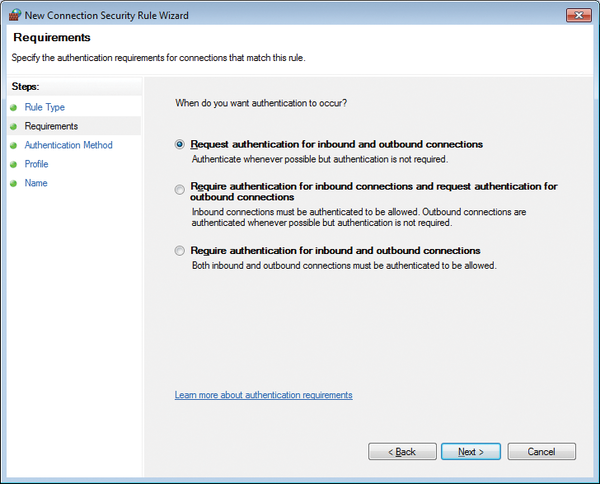 Figure 6: Specifying authentication requirements for rules.
The next step lets you define the authentication method that the rule will require. In this case, you can select whether to use IPsec settings or Kerberos authentication, which requires membership in a domain. After you assign a name to the new rule, it is created and appears in the main window. Caution: The rule you just created is enabled immediately! If you create a restrictive rule and the remote systems are not configured appropriately, the computer will be isolated. If you want to allow connections only via a certain inbound or outbound rule, if the connection is secure, you can select the corresponding action in the rule properties. Press the Customize button for more settings, for example, to enforce encryption.
Managing Rules via NetShell and PowerShell
You can easily configure the Windows Firewall through the graphical interface. Selecting Computer Configuration | Windows Settings | Security Settings | Windows Firewall with Advanced Security launches the well-known dialog wizard in which you can create specific rules for inbound and outbound network traffic, as well as connection security rules. However, you can also query and configure the Windows Firewall at the command line with a scripting tool like NetShell. The command
netsh advfirewall firewall show rule name=all
lists all firewall rules. If you want to disable the firewall, you can do so with the following command for all profiles:
netsh advfirewall set allprofiles state off
To reenable, use the same command, but with state on. To create a rule that allows inbound pings:
netsh advfirewall firewall add rule \
   name="Incoming ICMPv4" dir=in \
   action=allow protocol=icmpv4
The rule is active and is also displayed in the ruleset below Inbound Rules .
PowerShell also supports configuration of Windows Firewall. However, PowerShell is not as straightforward as using NetShell commands. If you are using PowerShell, interaction with the Windows Firewall is handled via the HNetCFG.FWPolicy2 COM object, and the configuration requires advanced scripting skills.
« Previous 1 2 3 4 Next »

Buy this article as PDF
(incl. VAT)
Buy ADMIN Magazine
Related content
-
Advanced Security in Windows Firewall
Windows Firewall with Advanced Security was introduced in Vista/Windows Server 2008. Compared with the old Windows Firewall, it offers many new features and possibilities.
-
Network security in the Google Cloud Platform
 Creating complex network infrastructures on the Google Cloud Platform is quick and easy with virtual private clouds, but fast doesn't always mean right. We look at the on-board tools you need to heighten your cloud security.
-
Securing and managing Microsoft IIS
 If you use IIS on Windows servers, you can fully access the web server's features and manage it effectively with on-board tools, including the well-known Internet Information Services (IIS) Manager, Windows Admin Center, and PowerShell.
-
Protect Azure resources with Network Security Groups
 Security segmentation into zones has long been the norm in data centers. Microsoft Azure Network Security Groups offers this kind of granular defense-in-depth security, including multilevel configuration of access rules.
-
Setting up secure RDP connections
 Know when to make RDP available on the Internet for remote access to Windows Server and how to configure connections securely when you do.
Subscribe to our ADMIN Newsletters
Subscribe to our Linux Newsletters
Find Linux and Open Source Jobs
Most Popular
Focus On Self-Hosting
• Running Your Own Matrix Server with Synapse
• Reliable Network Storage with TrueNAS Community Edition
• Self-Hosted File Syncing with Seafile
• Wiring the Modern Stack with Node-RED
• Self-Hosted Collaboration with Forgejo
• Self-Hosted PaaS with Coolify
• Build and Host Docker Images
• Self-Hosted Pritunl VPN Server with MFA
Support Our Work
ADMIN content is made possible with support from readers like you. Please consider contributing when you've found an article to be beneficial.