



© Andrius Repsys, 123RF.com
Advanced security in Windows Firewall
Safe as Houses
As a desktop firewall, Windows Firewall has the task of protecting the local computer; thus, it differs in principle from network firewalls, which control data traffic between networks. The local firewall has certain functional requirements. The main task, of course, is keeping out undesirable data traffic from the outside. Although the old Windows Firewall handled this job well, Windows Firewall with Advanced Security adds many new features:
- Controlling outbound data traffic
- Complex rules for inbound and outbound traffic
- Profile-based rules
- Signed and encrypted communication
The user has a choice between the simple firewall view and the Windows Firewall with Advanced Security snap-in. The simple view is accessed via the Control Panel by pressing the Windows Firewall icon. Here, you are also introduced to the concept of network locations (explained later) because the configuration of Windows Firewall is defined individually for each kind of location (Figure 1).
 Figure 1: You can define the Windows Firewall configuration individually for each kind of location, such as Home or work (private) networks.
Simple View
To modify the default configuration of Windows Firewall in the simple view, you select Allow a program or feature through Windows Firewall then the Change settings button to enable the selection window. Now you can either select the desired programs and features from the list by checking the appropriate boxes or press the Allow another program button to select a program that is allowed to communicate through the Windows Firewall (Figure 2). Because any program can send connection requests in the default setting, this point relates in particular to incoming connection requests, which are not generally allowed until you create a corresponding rule.
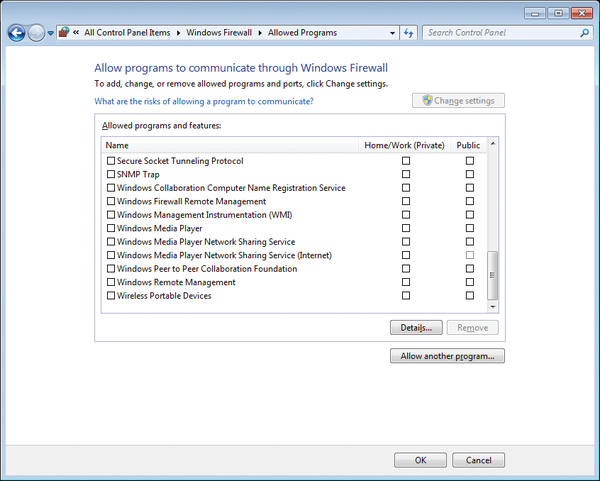 Figure 2: Protocols and programs manage communication with the outside world.
In the simple firewall view, you can also switch Windows Firewall on and off specifically for each network location. Disabling the firewall temporarily is particularly useful for testing – for example, if you want to rule out that possibility that communication is being blocked by the firewall.
Incidentally, an interesting trick allows you to determine whether a firewall is blocking communications between your local system and a computer on the same subnet. As a first step, you can try to contact the desired communication partner using Ping, which might or might not provoke a response. Then, look at the ARP cache with the arp -a command. The output of the arp command shows the IP address assignments and the corresponding MAC addresses. If the MAC address of the target system is shown correctly, in almost all cases, a firewall is to blame for the communication failure. If the MAC address is not shown, however, the target system is probably not active. This technique only works on local networks and not across router boundaries.
In the simple view, you can restore the default configuration of Windows Firewall. To do so, select the Restore defaults menu item. This option affects all network locations and resets all firewall settings to the factory defaults. Additionally, you can Change notification settings , which opens the same window that lets you enable or disable the Windows Firewall. The only notification setting you can modify is the one that enables notification when a new program is blocked. Make sure that you press the Back button to go back to the main view, because the feature does not open a separate window. If you click the corner Close icon here, the entire Firewall view is closed, including the Control Panel.
Advanced View
To access Windows Firewall with Advanced Security, either select the Advanced settings
menu item in the standard view or type wf.msc in the combobox of the Start menu. This opens a management console (MMC) with the usual three-panel setup: the menu on the left, actions on the right, and content to reflect the context in the main window in the middle (Figure 3). The first overview shows the configuration (Profile) of the individual network locations.
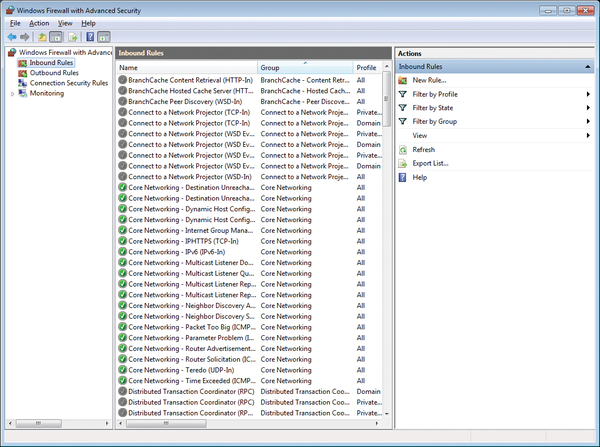 Figure 3: The management console shows the rules for inbound traffic.
Network Locations and Profiles
Irritatingly, locations are also known as network addresses (e.g., in Windows Help). A network location or network address in the sense of MMC is a set of security settings that are automatically enabled when the computer is connected to a network. Four network locations are distinguished:
- Home network: You should only activate this configuration in highly trusted environments. You can create a Homegroup here that allows largely unprotected access to personal folders on other computers in the same Homegroup. The Homegroup is a kind of mini-domain for home use.
- Work network: Designed for small business networks, this location is also suitable for trusted environments. Access to shares is possible and the network discovery mechanisms are active so that computers on the network can be found and can find other computers.
- Public network: If the computer is on an unprotected, public network, this location is useful to prevent access to the computer from the outside. Network discovery is disabled, and access attempts from the outside are ruled out.
- Domain network: This network configuration is automatically activated if the computer joins an Active Directory domain. It is managed by the administrator of the domain and cannot be selected.
You can select the desired network location in the Network and Sharing Center, and you can modify the network type in the View your active networks section. The network location settings include various mechanisms, whereas the firewall profile defines the Windows Firewall settings. All rules can be enabled or disabled separately for individual profiles; however, the settings for the home and work networks are grouped under the Private Profile.
The basic behavior of the Windows Firewall can be configured for each profile. To do this, pop up the context menu for the topmost entry in the menu on the left and select Properties . In the basic settings, you can, for example, configure how the firewall behaves when inbound or outbound connections are not explicitly covered by a rule. By default, all incoming connections are blocked and outbound connections are allowed (Figure 4).
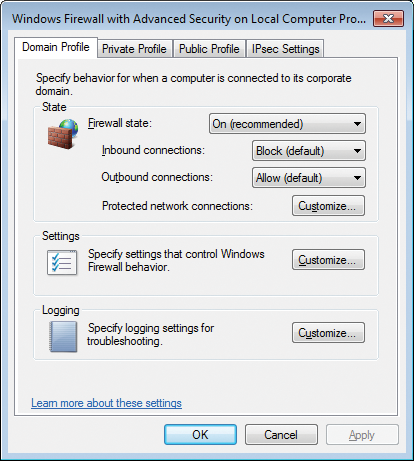 Figure 4: By default, the Firewall allows outbound connections and blocks all inbound connections.

Buy this article as PDF
(incl. VAT)
Buy ADMIN Magazine
Related content
-
Advanced Security in Windows Firewall
Windows Firewall with Advanced Security was introduced in Vista/Windows Server 2008. Compared with the old Windows Firewall, it offers many new features and possibilities.
-
Network security in the Google Cloud Platform
 Creating complex network infrastructures on the Google Cloud Platform is quick and easy with virtual private clouds, but fast doesn't always mean right. We look at the on-board tools you need to heighten your cloud security.
-
Securing and managing Microsoft IIS
 If you use IIS on Windows servers, you can fully access the web server's features and manage it effectively with on-board tools, including the well-known Internet Information Services (IIS) Manager, Windows Admin Center, and PowerShell.
-
Protect Azure resources with Network Security Groups
 Security segmentation into zones has long been the norm in data centers. Microsoft Azure Network Security Groups offers this kind of granular defense-in-depth security, including multilevel configuration of access rules.
-
Setting up secure RDP connections
 Know when to make RDP available on the Internet for remote access to Windows Server and how to configure connections securely when you do.
Subscribe to our ADMIN Newsletters
Subscribe to our Linux Newsletters
Find Linux and Open Source Jobs
Most Popular
Focus On Self-Hosting
• Running Your Own Matrix Server with Synapse
• Reliable Network Storage with TrueNAS Community Edition
• Self-Hosted File Syncing with Seafile
• Wiring the Modern Stack with Node-RED
• Self-Hosted Collaboration with Forgejo
• Self-Hosted PaaS with Coolify
• Build and Host Docker Images
• Self-Hosted Pritunl VPN Server with MFA
Support Our Work
ADMIN content is made possible with support from readers like you. Please consider contributing when you've found an article to be beneficial.