


« Previous 1 2 3 4 Next »
Advanced security in Windows Firewall
Safe as Houses
Rules
The left pane of the main window shows the three areas in which you can change Firewall rules:
- Inbound Rules: These rules apply to all communication requests from the outside.
- Outbound Rules: These rules control communications originating from the local computer.
- Connection Security Rules: This section allows you to select communication settings for authenticating, encrypting, or both.
The right pane of the main window shows the existing rules created for the area chosen in the left pane (e.g., for Inbound Rules in Figure 3). Various preconfigured rules exist in Windows. The overview window contains a number of columns that show the settings for each individual rule. The Action of a rule consists of one of the following options: allow, block, and allow if secure.
The intended action is shown by the icon in the first column of the rule name. A distinction is made between active and inactive rules. The icon is grayed for inactive rules. In the basic settings, in particular, there are many rules for various uses, which you can enable as needed. To do this, double-click the rule and check Enabled .
Programs can insert their own rules during the install. For example, games regularly add various rules to the ruleset for inbound rules. On Windows servers, rules are added for the different server services when they are installed. Depending on the scenario and environment, it is possible that you, as the administrator, only very rarely actually need to add rules manually.
Creating a New Rule
To add an inbound rule, select the New Rule item in the context menu for Inbound Rules . You can decide whether the rule allows or blocks a program or a port. An allowed program can bind to any port and be addressed by any means from the outside.
Alternatively, you can select a suitable rule from a list of predefined rules (Figure 5), which makes sense, for example, if you are enabling the branch cache feature. You can only access these configuration options if you select Custom . First select whether the rule will apply to a specific program or be independent of a program. The next step is either to select a protocol type (e.g., TCP, UDP, or ICMP) or to keep the protocol type All . Depending on your selection, the input mask enables or disables the protocol-specific information. Of course, you cannot select ports for the ICMP protocol. Conversely, you cannot select ICMP settings for TCP or UDP.
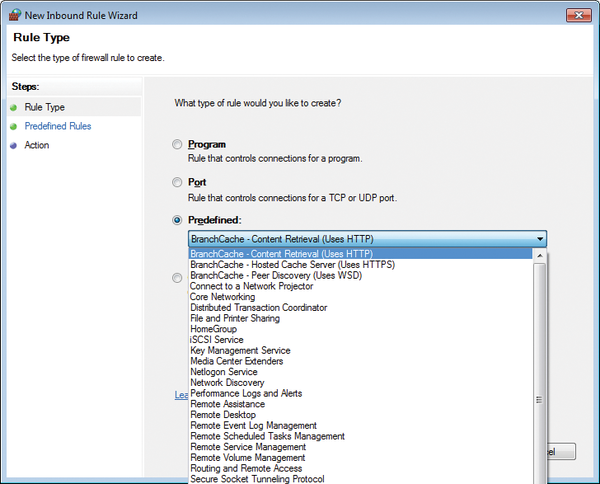 Figure 5: The Firewall shows you a predefined selection when you choose to add a rule.
The next dialog box allows you to select the source and target addresses, which are referred to as local and remote . Typically, only restrictions on remote addresses will be relevant. In the input field, you can enter both IPv4 and IPv6 addresses. They can be host or network addresses. Address ranges are also possible. Examples are shown below the entry field. Finally, you need to define the action, as discussed previously. Now the rule requires a profile mapping and a name, after which the rule appears at the top of the rule list, but only temporarily.
When you reopen the snap-in or sort a column, the rule is sorted accordingly. Incidentally, the second column shows a Group assignment for pre-defined Windows rules, so you view and manage related rules sorted by group (e.g., using NetShell (netsh) to enable or disable them). Any rules you create are activated immediately.
To view the properties of existing rules, you can double-click a rule or select Properties from the rule's context menu. If this is a predefined rule, you cannot change the properties. For all other rules, you can customize each parameter of a rule retroactively.
Outbound Rules
The Outbound Rules selection also contains various predefined rules. Many of these rules are disabled, and the allow action may be defined for individual rules that have already been activated. However, these rules are not really relevant unless the default rule for the active profile is set to block , which is not the case by default. In normal circumstances, the Windows Firewall will allow any outbound communication that is not explicitly blocked. As long as the default rule for outbound connections is set to allow , outbound rules only make sense if they either block a specific communication or require a secure connection.
« Previous 1 2 3 4 Next »

Buy this article as PDF
(incl. VAT)
Buy ADMIN Magazine
Related content
-
Advanced Security in Windows Firewall
Windows Firewall with Advanced Security was introduced in Vista/Windows Server 2008. Compared with the old Windows Firewall, it offers many new features and possibilities.
-
Network security in the Google Cloud Platform
 Creating complex network infrastructures on the Google Cloud Platform is quick and easy with virtual private clouds, but fast doesn't always mean right. We look at the on-board tools you need to heighten your cloud security.
-
Securing and managing Microsoft IIS
 If you use IIS on Windows servers, you can fully access the web server's features and manage it effectively with on-board tools, including the well-known Internet Information Services (IIS) Manager, Windows Admin Center, and PowerShell.
-
Protect Azure resources with Network Security Groups
 Security segmentation into zones has long been the norm in data centers. Microsoft Azure Network Security Groups offers this kind of granular defense-in-depth security, including multilevel configuration of access rules.
-
Setting up secure RDP connections
 Know when to make RDP available on the Internet for remote access to Windows Server and how to configure connections securely when you do.
Subscribe to our ADMIN Newsletters
Subscribe to our Linux Newsletters
Find Linux and Open Source Jobs
Most Popular
Focus On Self-Hosting
• Running Your Own Matrix Server with Synapse
• Reliable Network Storage with TrueNAS Community Edition
• Self-Hosted File Syncing with Seafile
• Wiring the Modern Stack with Node-RED
• Self-Hosted Collaboration with Forgejo
• Self-Hosted PaaS with Coolify
• Build and Host Docker Images
• Self-Hosted Pritunl VPN Server with MFA
Support Our Work
ADMIN content is made possible with support from readers like you. Please consider contributing when you've found an article to be beneficial.